Your Balance and Payments
See what you have paid, what is left on your balance and which lessons it has covered.
Your Balance and Payments in the app, step by step
Filmed in the live app, at your own pace. Use the player controls to pause, replay or go full screen.
Good to know
- It is a view, not a payment screen. Only your instructor can record money or apply a balance, so nothing here can be changed by accident.
- A lesson that shows Reversed means your instructor returned that money to your balance — usually to correct a mistake. Check the balance rather than the individual lesson.
- The balance updates as soon as your instructor records a payment, so there is no need to ask for a statement.
If you have paid up front — for a block of lessons, a promotion or simply some credit — the Payments tab shows where that money has gone. It is a read-only view: your instructor records the payments and decides how they are applied, and you can check at any time that the two of you agree.
-
Open the Payments tab
Tap My Details, then the Payments tab in your record. It sits beside Details, so it is always one tap away.
-
Read the balance card
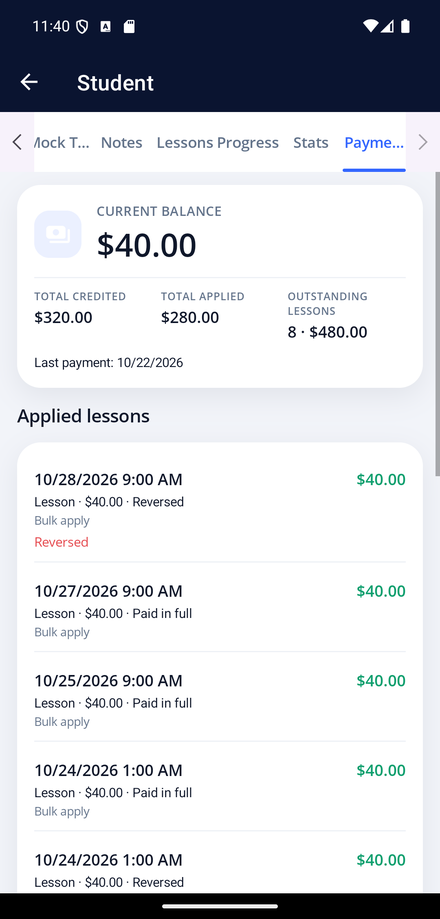
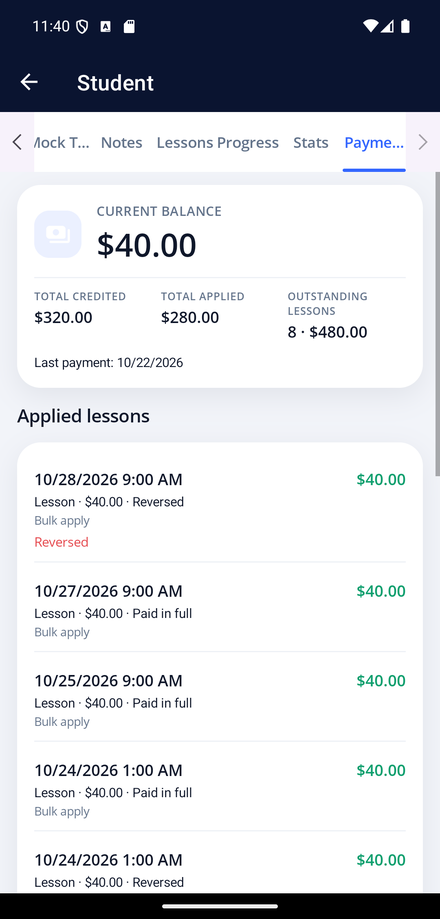
Current balance is what you have left to spend. Underneath, Total credited is everything you have paid, Total applied is what lessons have already used, and Outstanding is what you still owe for lessons at their own price.
-
See which lessons your balance paid for
Applied lessons lists each lesson your balance has covered, with the amount and its status — Paid in full, Partial, or Reversed if your instructor has put the money back.
-
Check the payment history
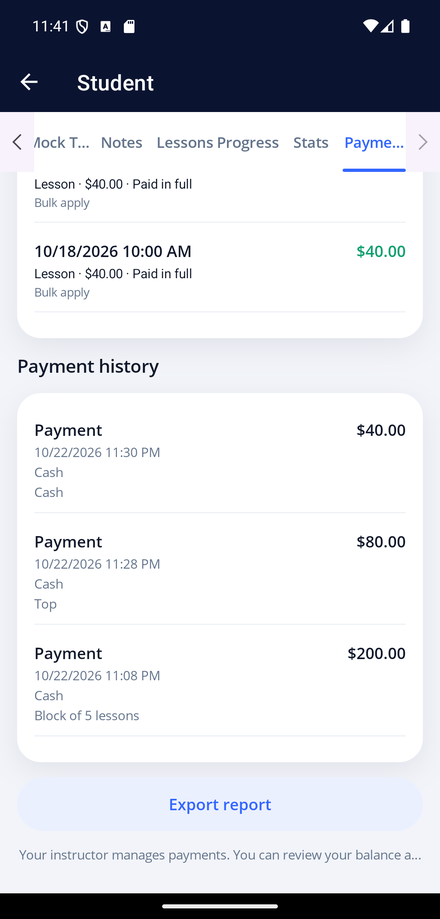
Payment history shows each payment your instructor recorded, with the date, the amount, the method and their note — for example Block of 5 lessons. If a payment is ever missing, show them this screen.
-
Export it
Tap Export report for a PDF of the balance, the lessons it has paid for and the payment history, ready to keep or send to whoever is paying for your lessons.