Direct Messaging
A private one-to-one chat with each pupil, with unread counts, read receipts and a downloadable transcript.
Direct Messaging in the app, step by step
Filmed in the live app, at your own pace. Use the player controls to pause, replay or go full screen.
Good to know
- Messages are only ever one-to-one. For anything that goes to everybody — closures, weather warnings, timetable changes — use Custom Broadcast instead.
- Unread counts are per pupil and add up to the badge on your dashboard tile, so the number on the tile is always the number of replies waiting for you.
- The student app is free for your pupils, so there is no reason for either of you to fall back on personal texts.
Messages is a private chat with each pupil, in the same style as the messaging app on your phone: one-to-one, in real time, with no group chats and no media to lose track of. You can start a conversation with any pupil you teach, they reply from their own app, and both sides see the same history because every message is stored as it is created. When you need a record of what was agreed, download the transcript for that pupil.
-
Open Messages
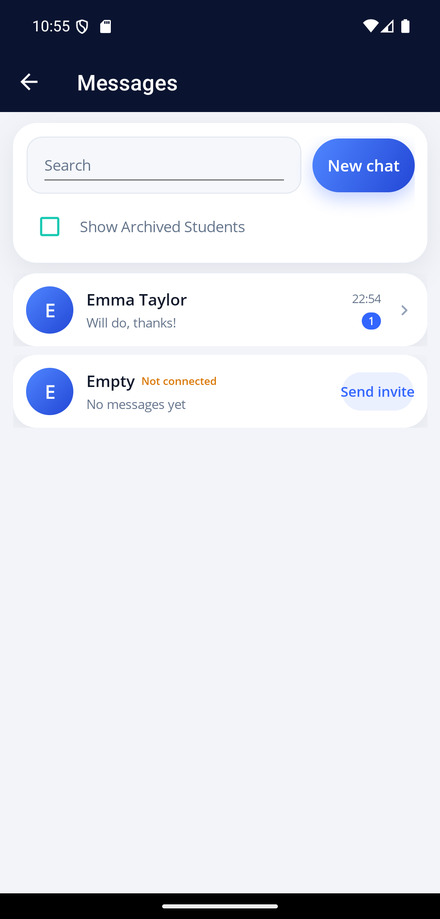
Tap the Messages tile on your dashboard. The inbox lists every pupil you have a conversation with, newest activity first, with the last message and the unread count. The badge on the dashboard tile is your total unread, so you can see at a glance whether anything needs an answer.
-
Start a chat with any pupil
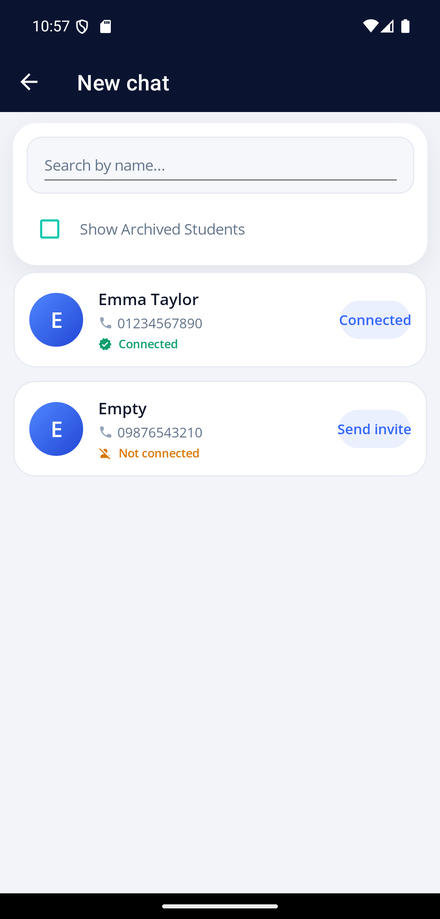
Tap New chat and pick from your full list of pupils. Search by name if your list is long, and switch on Show Archived Students to reach a pupil you have finished teaching. A green Connected pill means they already use the student app and will get your message; a pupil showing Not connected has not installed it yet, and Send Invite sends them the invitation.
-
Hold the conversation
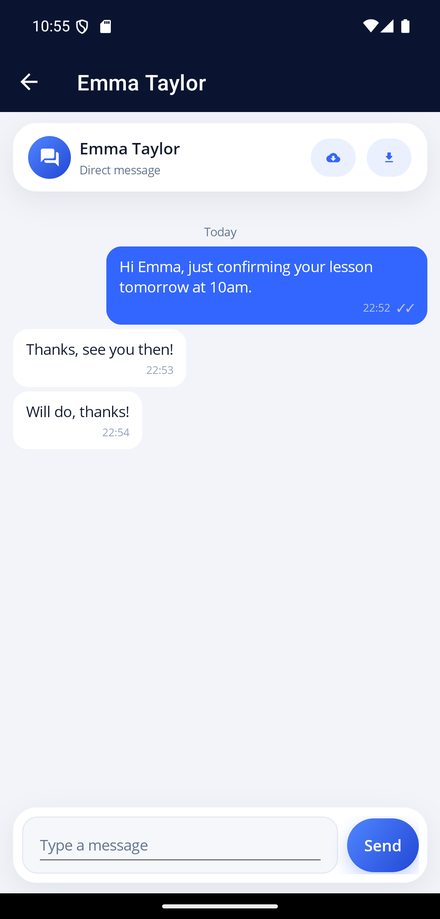
Type in the box at the bottom and tap Send. Your pupil sees the message straight away, and their reply arrives in the same chat without you refreshing anything. Every message is stamped with the time it was sent, and the list scrolls back through the whole history however far you go.
-
See when a message has been read
One tick means the message has been delivered, two blue ticks mean your pupil has opened the chat and read it. An unread count beside a pupil in the inbox tells you what is waiting for you, and clears as you read it.
-
Download the chat history
Tap the download icon in the chat header to save that conversation as a text file. The file opens in the share sheet, ready to email, file away or attach to your own notes — useful when a pupil queries a change of time or a cancellation.
-
Keep the inbox tidy
Switch on Show Archived Students in the inbox to see finished conversations, and keep the list to the pupils you are teaching now. A pupil who has not connected yet shows a Send Invite button so you can get them on board in one tap.